You are viewing an unreleased or outdated version of the documentation
Declarative Automation#
Dagster can automatically materialize assets when criteria are met, enabling a declarative approach to asset materialization. Instead of defining explicit workflows to materialize assets, you describe the conditions under which they should be materialized and let the system kick off runs in response.
For example, you have an asset that's scheduled to execute every day at midnight. Instead of executing whether there's new data or not, you can use Declarative Automation to materialize the asset only after its parent has been updated.
Declarative Automation includes pre-built conditions to handle common use cases, such as executing on a periodic schedule or whenever an upstream dependency updates, but conditions can also be customized.
Benefits#
Using Declarative Automation helps you:
- Ensure you're working with the most up-to-date data
- Optimize resource usage by only materializing assets when needed
- Simplify how your team understands their assets by consolidating all asset logic to a single location
- Avoid thinking about specific workflow boundaries, such as a schedule accounting for timezones or Daylight Savings Time
Prerequisites#
Before continuing, you should be familiar with:
How it works#
Declarative Automation is an automation method that kicks off runs when criteria are met. This method contains two main components:
- An automation condition (
AutomationCondition), which represents when an individual asset should be executed. - A sensor (
AutomationConditionSensorDefinition), which evaluates eachAutomationConditionand launches runs in response to their status.
Automation conditions#
Automation conditions describe the conditions under which an asset should be executed. Dagster provides two pre-built conditions:
| Name | Description | Useful for |
|---|---|---|
| AutomationCondition.eager() | This condition will materialize an asset:
|
|
| AutomationCondition.cron(cron_schedule) | This condition will materialize an asset once per cron schedule tick, after all of its parents have been updated since the tick | Regularly updating an asset without worrying about the specifics of how its parents update |
Automation conditions can be set on the @asset decorator or on an AssetSpec:
from dagster import AssetSpec, AutomationCondition, asset

@asset(automation_condition=AutomationCondition.eager())
def my_eager_asset(): ...

AssetSpec("my_cron_asset", automation_condition=AutomationCondition.cron("@daily"))
The core AutomationCondition framework is extremely flexible, allowing you to build custom conditions from the ground up. Refer to the Customizing automation conditions guide for more information.
Sensors#
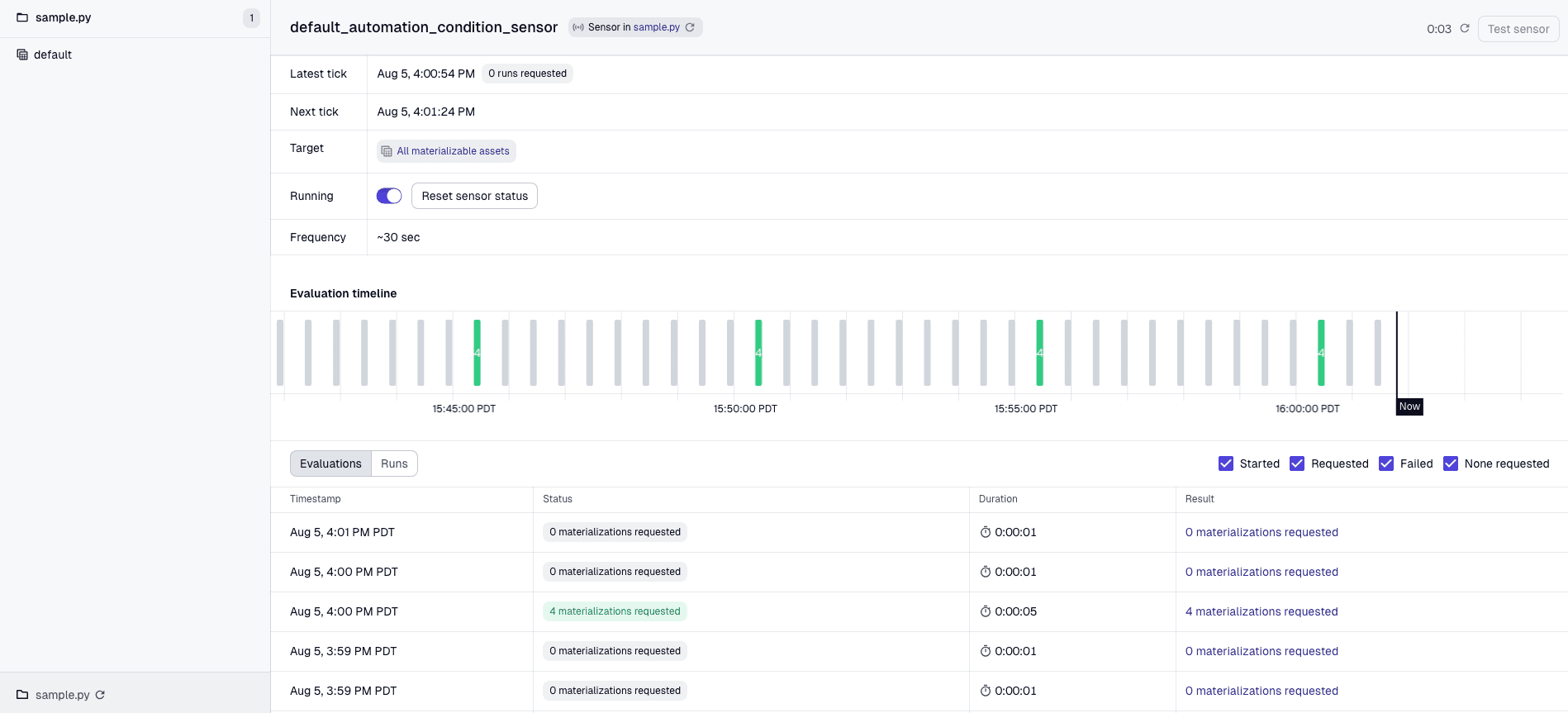
When automation conditions for an asset are met, a sensor will kick off a run to materialize the asset. This sensor, named default_automation_condition_sensor, will be available for each code location and monitor all assets within that location. To use multiple sensors or change the properties of the default sensor, refer to the AutomationConditionSensorDefinition documentation.
For an automation condition sensor to run, it must be turned on and an active dagster-daemon process must be running. If you used dagster dev to start the Dagster UI/webserver, the daemon process will be automatically launched alongside the webserver.
After these criteria are met, the sensor's evaluation history will be visible in the UI:
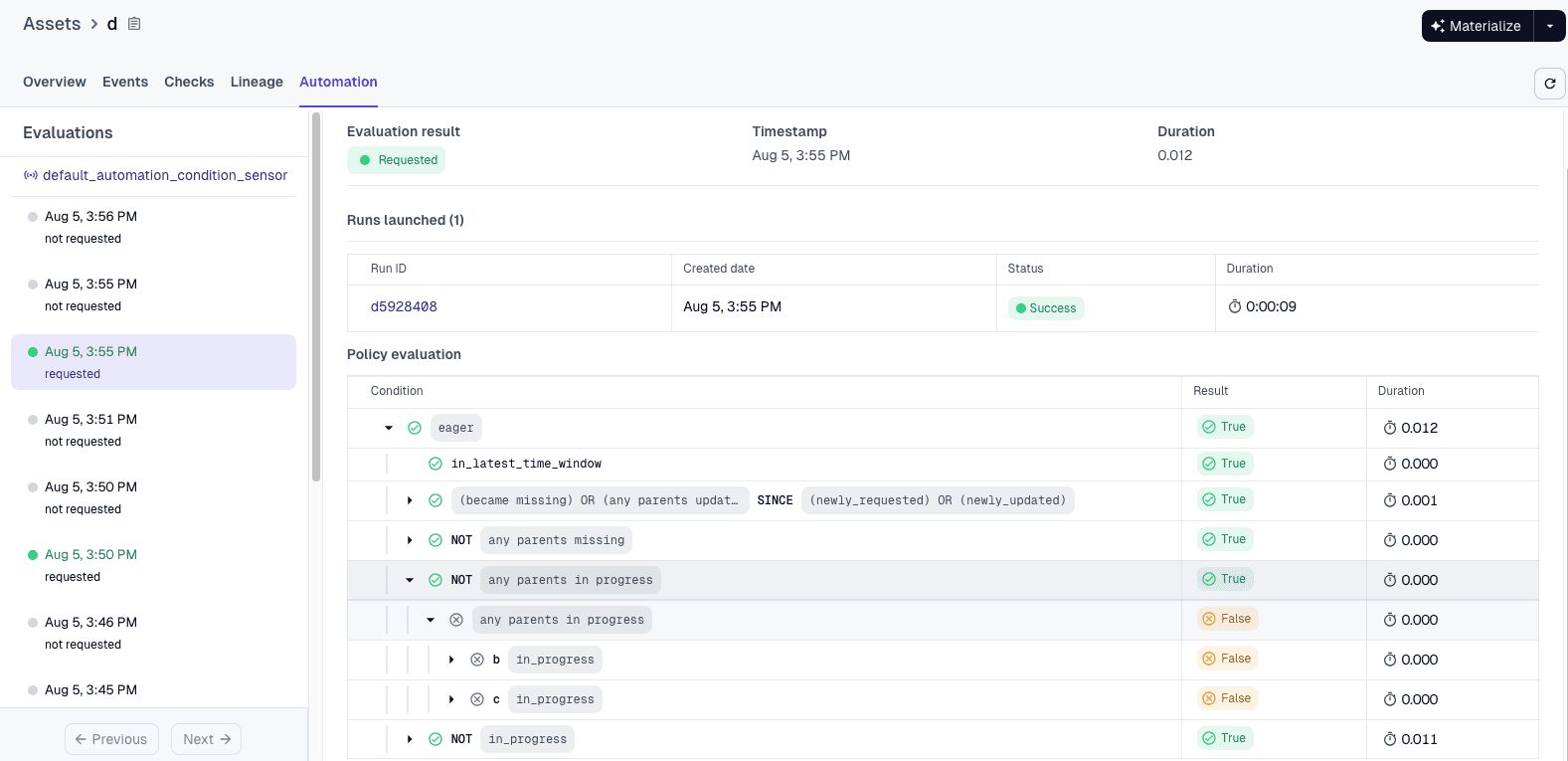
You'll also be able to view a detailed history of each asset's evaluations on the asset's Asset Details page. This allows you to see why an asset was or wasn't materialized at different points in time:
Getting started#
To use Declarative Automation, you'll need to enable the automation condition sensor in the Dagster UI:
- Navigate to Overview > Sensors
- Locate the desired code location.
- In the code location, toggle the
default_automation_condition_sensorsensor to on.
From here, you can:
- Define custom automation conditions
- View a history of each evaluation for the sensor
- Navigate to individual assets to see a history of their evaluations